The Cloud Went Dark: Three Ways to Keep Working When Microsoft Goes Down
Microsoft 365 went down for about 24 hours across 74 countries. It wasn't a cyberattack. Here are three ways to keep working, plus tips on a backup client — and using a bot to build your own simple tools.
Picture this: it's Thursday lunch in a house a lot like yours. The coffee's still warm. Somebody is about to hit send on an ordinary email — a school form, a work note, a "what time are you picking up the kids?" And then the little wheel on the screen starts spinning, and it doesn't stop.
Outlook won't open. Teams is a brick. Copilot, the office helper that never shuts up on a normal day, has nothing to say at all. The calendar with the dentist appointment is sitting on a network that has decided, for the moment, not to be helpful.
That is what happened to tens of millions of people on Thursday, 12 November 2026, when Microsoft 365 went dark.
I'm not here to tell you to panic. I lived through an ice storm in north Texas that left my family melting snow for water, and I promised myself I'd rather be slightly ridiculous than caught out twice. This is the same promise, with fewer blankets and more backup email addresses. The cloud is useful. It is also just somebody else's computer. Last week, somebody else's computer had a very long afternoon.

What actually went down
The trouble started around lunchtime on the US East Coast. Wired reports that people began flagging Outlook outages just after 12 pm Eastern, and that what Microsoft first described as a North America problem spread to more than 70 countries. The Guardian, citing Downdetector, puts the peak at nearly 130,000 reports in 74 countries, hitting Outlook, Teams, SharePoint, OneDrive, Copilot, and, for some people, Word, Excel and PowerPoint.
It took the better part of a day to come back. The Guardian says recovery started after roughly 18 hours, just before midday GMT on Friday. Wired called it a 24-hour outage, and CNBC reported Microsoft was still restoring service nearly 24 hours after the problems began. Delayed emails were given 48 hours to keep trying to land.
Microsoft says this was not a cyberattack, and not the fault of AI. In a statement reported by Wired, the company called it "a technical issue not related to cyber or AI/agents," introduced "by an issue during an earlier network capacity upgrade." It has promised a full post-incident report once the review is done. Until that report lands, I'm taking the company at its word, and I'm still packing a spare key.
The mess reached further than office chat. The US House sent staff a campus-wide alert. Some NHS services in the UK were disrupted, though patients were told to attend appointments as normal. Several British police forces asked people to phone in, not report crimes online. In Colorado, a sheriff's office that couldn't process bond payments by email asked people to come in person. When the cloud sits down, the queue forms at the door.
Microsoft, according to The Guardian, says more than 430 million people use Microsoft 365 apps, and more than 90 per cent of Fortune 500 companies use Copilot. That's a lot of eggs in one basket with a wobbly handle. So here are three ways to keep working the next time Microsoft has a long afternoon. Set them up on a boring Tuesday, not during the outage.
Way 1: Keep a spare key that isn't on Microsoft's ring
If your only mailbox is Outlook, and your only group chat is Teams, then when those two go quiet you don't have a communications problem. You have a silence problem.
The first way around a Microsoft outage is almost insultingly simple: keep a second email address, and a second way to talk, that do not live in Microsoft's cloud. Gmail, iCloud, Proton, a cheap mailbox on a different host — pick one you will actually check. For chat, that can be ordinary SMS, a phone call, Signal, or whatever your family already uses that isn't Teams. The brand matters less than the independence.
Do the unglamorous part now. Write the spare address on the paper list in the kitchen drawer. Tell your household, and the two or three people at work who would need to find you, that if the main system dies, this is where you'll be. Log in once a month so the password isn't a treasure hunt, and install the app before you need it. You don't need to move your whole life off Microsoft. You need a door that still opens when the main one sticks.
Way 2: Work offline on purpose
The second way is older than the cloud, and it still works: keep the important stuff where your hands can get it, even if the internet is sulking.
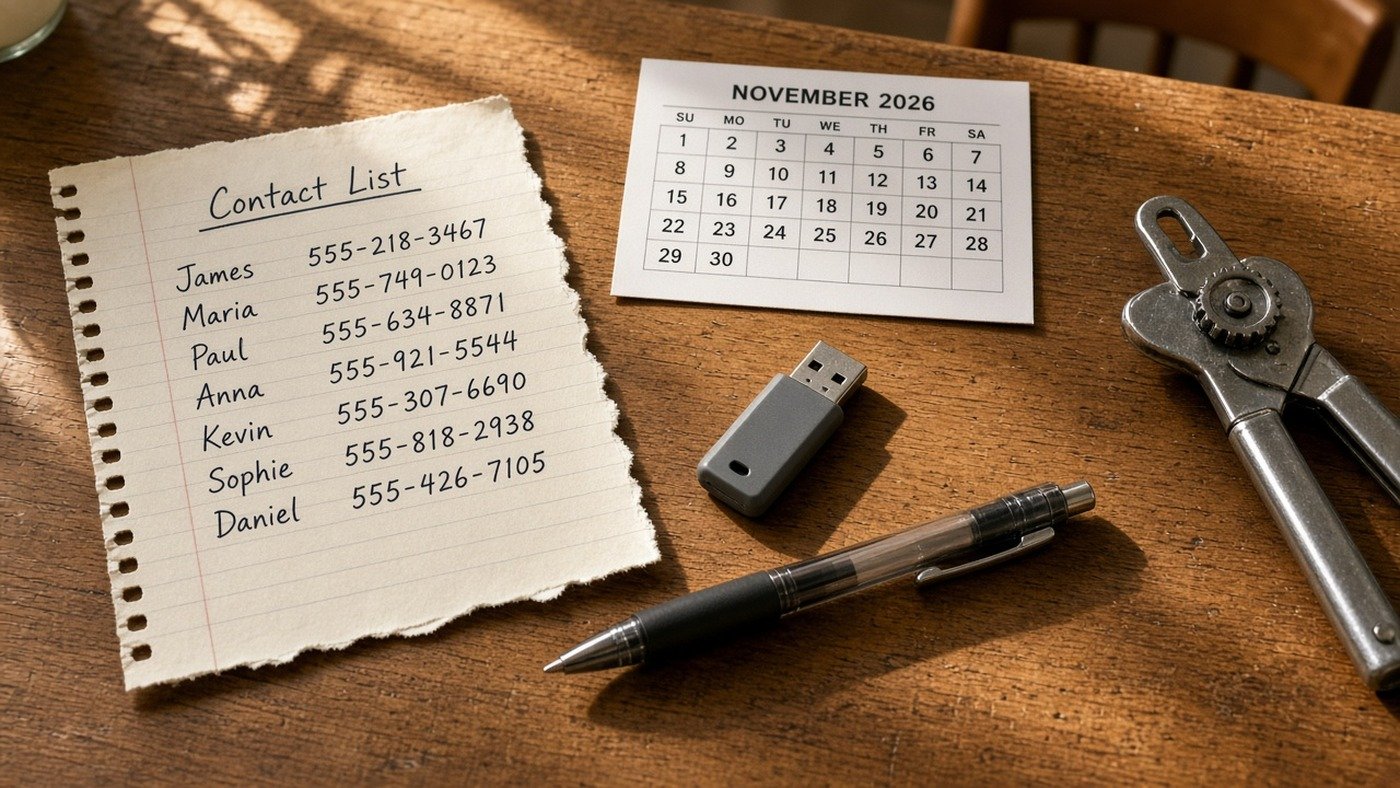
If you use the Outlook desktop app, turn on cached or offline mode so the mail and calendar already on your machine stay readable when the server is not. Save local copies of the documents you'd actually miss — the insurance PDF, the school form, the contract, the family calendar, the presentation due Friday — and put a second copy on a USB stick that lives in a drawer. Print the one-page version of your contacts. Yes, on paper. The humble can opener has survived every software update I have ever lived through. A phone list can too.
This is not a call to abandon the cloud. It's a call not to keep your only copy of the will, the passport scan, or tomorrow's notes in a folder that needs Microsoft's permission to appear. Last week's outage didn't wipe anyone's files, as far as the public reporting goes. It just hid them behind a spinning wheel.
Way 3: Agree the fallback before the lights flicker
The third way is a plan, not a product. Agree, in writing, what your family and your workplace will do if Microsoft goes dark.
It can be one paragraph. "If Teams is down, we text. If email is down, we use the spare mailbox, and if that fails we call. The paper list is on the fridge. The USB stick is in the junk drawer." Put names and numbers on that list, including the school, the doctor, the neighbour with a spare key, and the one colleague who still answers a phone. Then walk through it once, the way you'd test a torch. If nobody knows the plan except you, it is a speech, not a plan.
A good fallback is boring on purpose. It should work if you're tired and the kids are loud. Decide it before the spinning wheel starts, so you're not inventing a system while your inbox sits in a 48-hour queue.

Keep a backup client, and actually use it
This is the habit that makes the three ways above real.
A backup client is just a second mail or chat app, already installed, already signed in, pointing at that spare account. It can be the mail app that came on your phone. What it cannot be is a download you promise yourself you'll sort out "if it ever happens again." Last week it happened. It will happen again, to this company or another one. The injustice isn't that software fails. Software fails. The injustice is how much of ordinary life we have piled onto a single failure point, then acted surprised when the pile fell over.
Open the backup app this weekend. Send yourself a test message. Save the login somewhere you can find without the cloud — a password notebook, or a manager that isn't tied to the same Microsoft account.
Let a bot help you build your own
Here's the part that would have sounded like science fiction when I was teaching, and now sounds like a Saturday chore. You do not need to become a programmer. You can ask an AI helper — ChatGPT, Claude, a local bot, even Copilot on a day when it's actually awake — to help you build a few simple backup tools of your own. Think of it as a patient shop teacher, not a magician.
Ask it to turn a messy contact list into a clean one-page sheet you can print. Ask it to write a tiny script that copies your Documents folder to a USB stick once a week, and then to explain each line in plain English before you run it. Ask it to build a family "if the cloud dies" checklist: who to text, where the paper list lives, where the stick lives, what to do if you're not at home.
A few rules. Don't paste passwords, bank details, or anything you wouldn't write on a postcard into a chatbot. Don't ask a bot to break into an account or "bypass" a login. Don't run a script you don't understand on the only copy of your files. Test it on a sunny day, on a folder you can afford to duplicate. A tool you don't trust is not a backup. It's a second way to have a bad afternoon.
Used that way, a bot is just a faster way to build the spare key. The printed list, the weekly copy-to-a-stick habit, the one-paragraph family plan — those are yours, even when the helper that helped you write them is having a day off.

Be ready, not impressed
I don't want you to swear off Microsoft, or sleep in a Faraday cage with a bag of beans. I want you to be a little harder to strand.
Three ways: a spare mailbox and chat that don't live at Microsoft; copies of the important stuff on your machine, on a stick, and on paper; and a fallback everyone in the house has actually heard of. Keep a backup client you have already opened, and, if you're willing, let a bot help you build the simple tools behind them.
The next time the wheel starts spinning, you should still be able to tell the school you're running late, still read the document due in the morning, and still laugh about it at dinner. Not fear. Just a house that still works when somebody else's computer doesn't.
Every sunrise is a victory. Let's make sure we can still tell each other about it.
And Remember:
Trust no Single Source
Trust Your Gut
and Stay Curious
J-Mark
For media enquiries, please contact:
UK - 020 3404 2295
USA - 0650 702 7445
AUS - 02 9072 9499
Help Support J-Mark and the rest of our Authors by visiting the store to get your copy of the latest Anonymous Author Novel or Anything Anonymous.